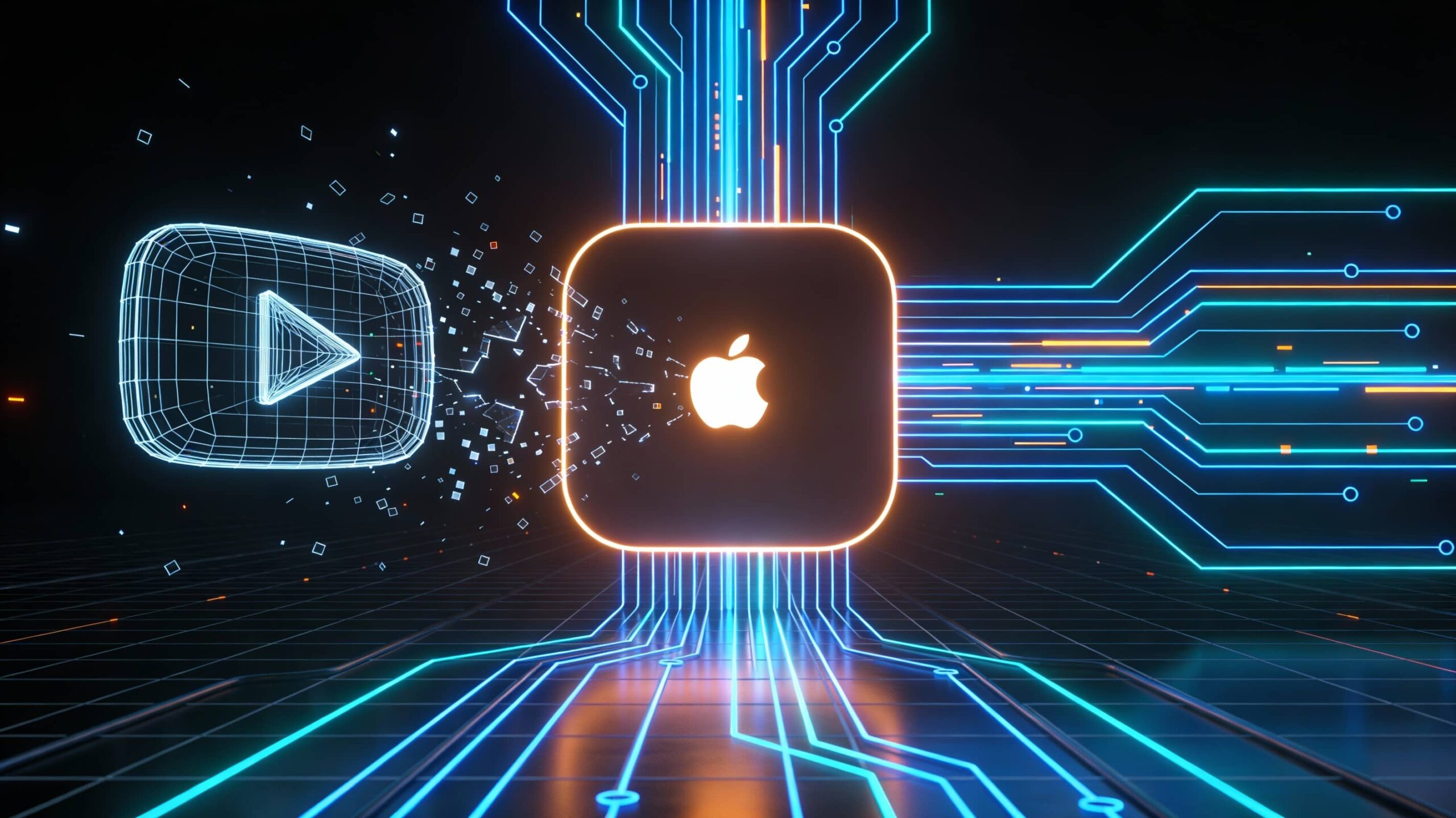
How It Works: iSponsorBlockTV uses YouTube's undocumented Lounge API (the same one your phone uses to cast to TVs) to send remote control commands that auto-mute and skip ads. Your Apple TV connects to YouTube's servers, and your VPS also connects to YouTube's servers with your device's pairing token—no direct connection needed between them.
Works from any VPS location because everything routes through YouTube's cloud infrastructure. No apps to install on Apple TV, no jailbreak, no local network requirement.
Requirements / Tips
- VPS with Docker installed (tested on Debian)
- Apple TV with native YouTube app
- Total Cost: $0/month vs. $13.99/month YouTube Premium
- Setup Time: 5 minutes
- Made in USA Quality: Open source, community-driven, no corporate tracking
- Benjamin Franklin would approve.
Step 1: Create Data Directory
bashmkdir -p /root/isponsorblocktv/data
Step 2: Run Initial Setup
bashdocker run --rm -it \
  -v /root/isponsorblocktv/data:/app/data \
  --net=host \
  ghcr.io/dmunozv04/isponsorblocktv \
  --setup-cli
Step 3: Answer Setup Prompts
- System-wide proxy? Type
nand press Enter - Add device? Type
yand press Enter - Pairing code: Go to Apple TV > YouTube app > Settings > Link with TV code, enter the 6-8 digit code shown
- API key? Type
nand press Enter - Skip categories: Press Enter to skip all categories, or type
sponsor selfpromo interaction intro outro - Whitelist channels? Type
n - Minimum segment length? Type
n - Report to SponsorBlock? Type
y - Mute ads? Type
y - Skip ads? Type
y - Enable autoplay? Type
y
Step 4: Start the Service
bashdocker run -d \
  --name isponsorblocktv \
  --restart unless-stopped \
  -v /root/isponsorblocktv/data:/app/data \
  -p 8096:8096 \
  ghcr.io/dmunozv04/isponsorblocktv
Step 5: Verify It's Running
bashdocker logs -f isponsorblocktv
Look for “Connected to device” and “lounge id token acquired”. Press Ctrl+C to exit logs.
Testing
Play any YouTube video on your Apple TV. Ads will instantly mute and skip automatically. You'll see log entries like:
textAd has started, muting
Ad has ended, unmuting
View Logs
bashdocker logs isponsorblocktv
docker logs -f isponsorblocktv  # live tail
Check Resource Usage
bashdocker stats isponsorblocktv
Restart Container
bashdocker restart isponsorblocktv
Stop and Remove Container
bashdocker stop isponsorblocktv
docker rm isponsorblocktv
Add More Devices (Another Apple TV, etc.)
bashdocker stop isponsorblocktv

docker run --rm -it \
  -v /root/isponsorblocktv/data:/app/data \
  --net=host \
  ghcr.io/dmunozv04/isponsorblocktv \
  --setup-cli
Answer “y” to add more devices, then restart the service container.
Recreate Container (Config Persists)
bashdocker rm -f isponsorblocktv

docker run -d \
  --name isponsorblocktv \
  --restart unless-stopped \
  -v /root/isponsorblocktv/data:/app/data \
  -p 8096:8096 \
  ghcr.io/dmunozv04/isponsorblocktv
No re-pairing needed as long as /root/isponsorblocktv/data/ exists.
Performance
- RAM Usage: ~50MB
- CPU Usage: Near-zero (API monitoring only)
- Bandwidth: Minimal (no video traffic, just API calls)
- Web Interface: None during normal operation (CLI/config file management only)
Perfect for VPS free tiers.
Limitations
- Only works with YouTube apps on TVs, game consoles, and casting devices
- Does NOT block ads when watching YouTube directly on iPhone/Android apps
- Does NOT work in web browsers (use uBlock Origin extension instead)
- Requires VPS or home server to stay running 24/7
Troubleshooting
Container exits with “No devices found”:
Run the setup wizard first to create config.json before starting the service container.
Connection refused on port 8096:
No web UI exists during normal operation—only during --setup process.
Ads still playing:
Check logs for “Ad has started, muting” messages. If missing, re-pair device or verify config.json exists.
Config File Location
Manual edits: /root/isponsorblocktv/data/config.json
Restart container after changes: docker restart isponsorblocktv
1 thought on “Block YouTube Ads on Apple TV Without Premium Using iSponsorBlockTV”